
[Cursor] Cursor AI Beginner Guide 2026 — Install, Activate & Troubleshoot
Beginner-friendly tutorial for installing the Cursor Plugin (VSIX) — download the plugin, install via Cursor Extensions, activate your license, use Ease / Master modes, and fix common authentication and network errors.
[Cursor] Cursor AI Beginner’s Guide
🔥 More credits than the official tier — equivalent value to the official $200 plan
About the product used in this article
The installation, configuration, and usage steps in this article are based on the [Cursor] product provided by ngaicode.
We offer [Cursor] plans starting from $1.50 / 1 days ngaicode Cursor page. After purchasing any plan, you’ll receive a license KEY with a detailed tutorial. If you encounter any issues during installation, setup, or use, our support team is always available to help.
To subscribe to [Cursor], view plans and pricing at the Cursor product page or contact customer support to place an order.
Contact us: WhatsApp Contact us — PayPal & USDT TRC20 payments accepted.
1: 👉 Beginner’s Video — Watch First
2: 👉 Quick Navigation — Table of Contents
Cursor version — Click to go to the official download site, Backup download link
Recommended Cursor version: 3.15 or later
Reinstall Cursor cleanly — if this isn’t your first time installing Cursor, uninstall it first and reinstall. Do not install on top of an existing version. A clean reinstall fixes 99% of issues.**
Windows users: install Cursor in the default install directory. If you install it somewhere non-default, you’ll need extra permissions — see Granting file-access permissions to Cursor on Windows{target=“_blank”}.
3: 🔥 Download, Install, and Use
3.1: Download the plugin package
cursor-free-2.10.0.vsix — Plugin version 2.10.x supports Cursor 3.15 and later only.
cursor-free-2.8.5.vsix — Plugin version 2.8.x supports Cursor 3.9 through 3.14 only.
3.2: Install the plugin
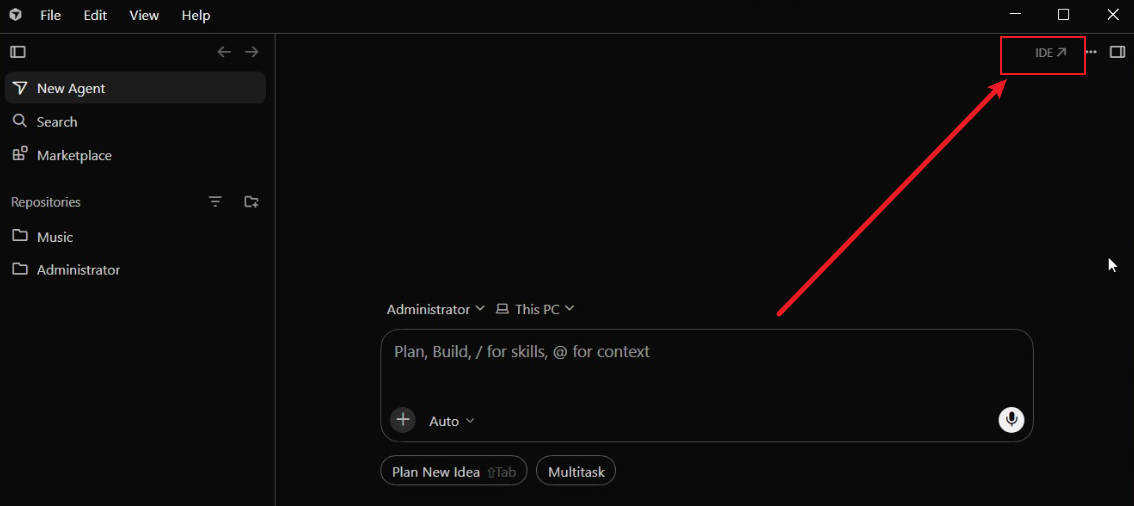
Open Cursor and switch to IDE Mode — this makes it easier to find Extensions.
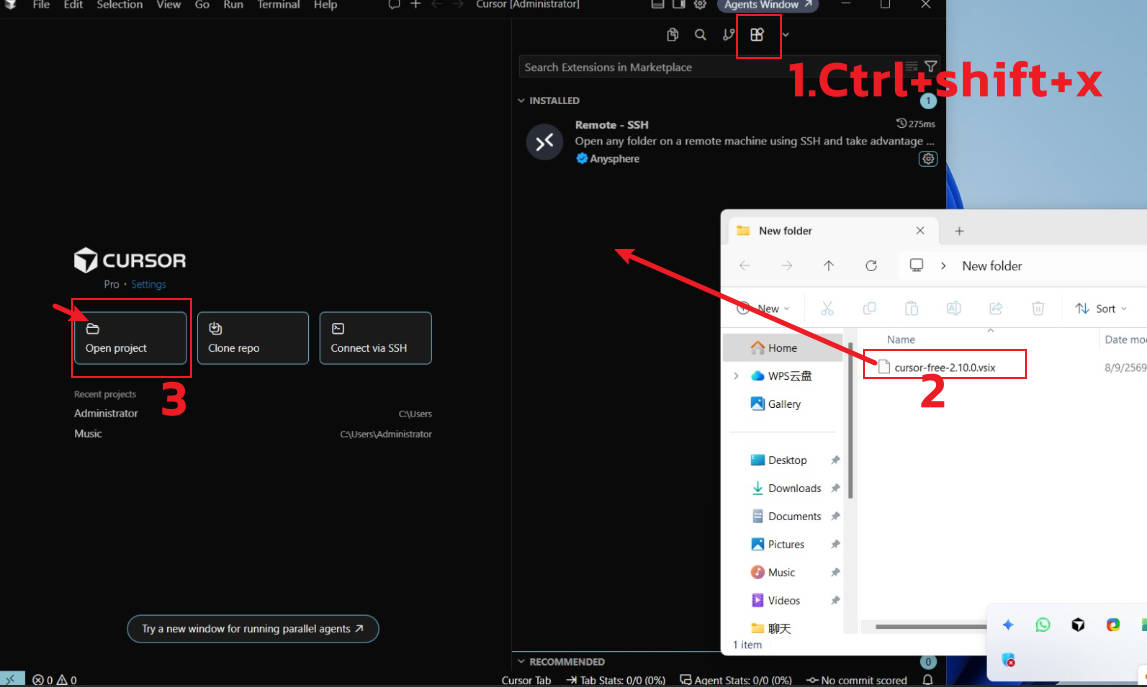
Press Ctrl + Shift + X to open Extensions, then drag the downloaded plugin onto the Extensions page to install.
Click Open Project to open the project you want to work on.
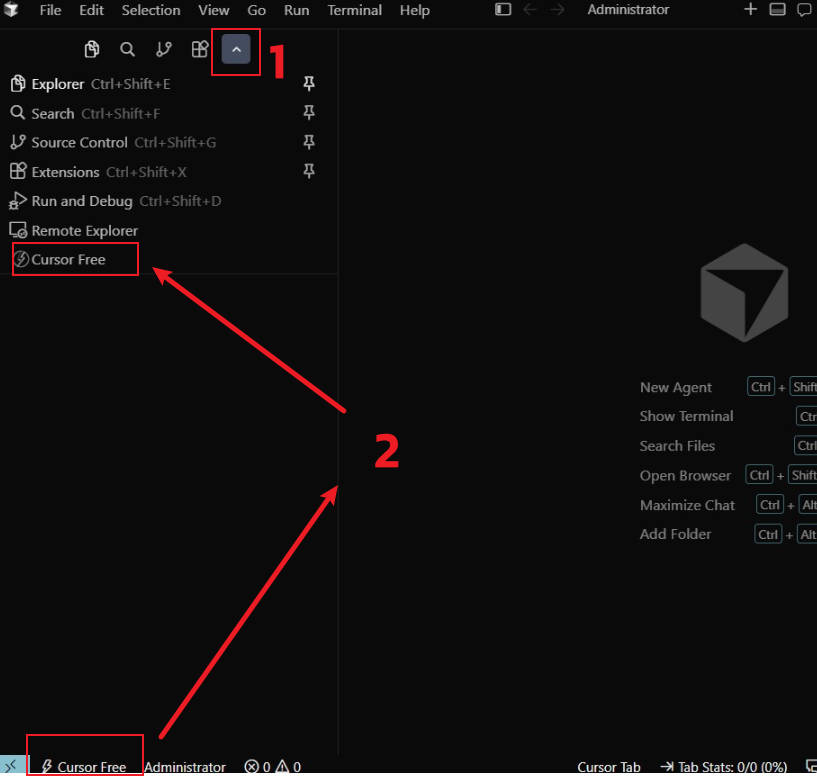
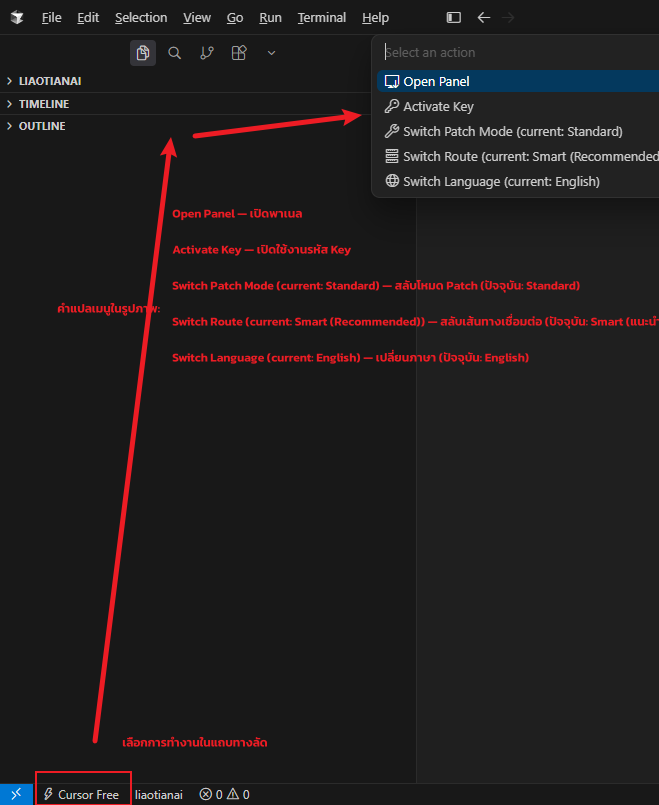
Click the button next to Extensions, or go to the bottom-left of Cursor and select Cursor Free, then click Open Panel.
Activation tip: Open the plugin → copy the key and paste it into the license input → click the Activate button. Once activation succeeds, your quota and remaining time are auto-updated and effective.
Can’t drag-and-drop to install?
In Cursor, press: Ctrl + Shift + P to open the Command Palette as shown below. Type Install from VSIX, then select that option. A file picker opens — pick the VSIX plugin file you downloaded earlier. Installation completes automatically.
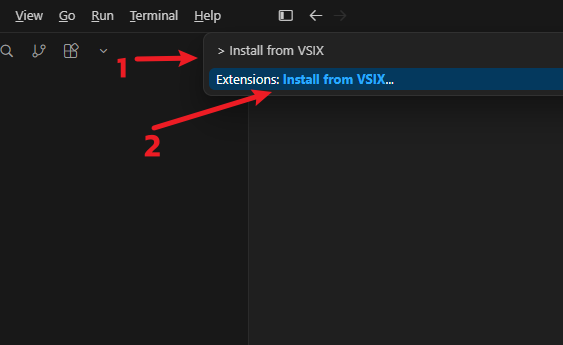
If the keyboard shortcut doesn’t work, click Cursor’s View menu and choose Command Palette.
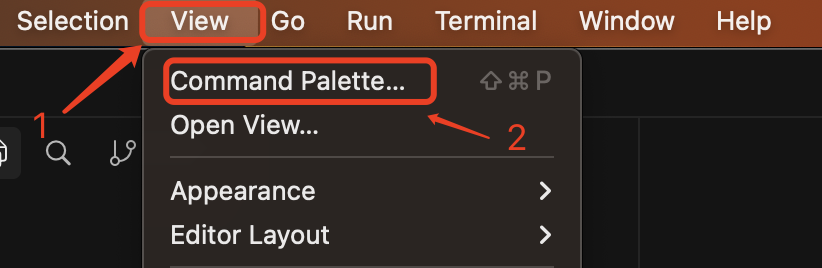
How to install in Cursor 3.x?
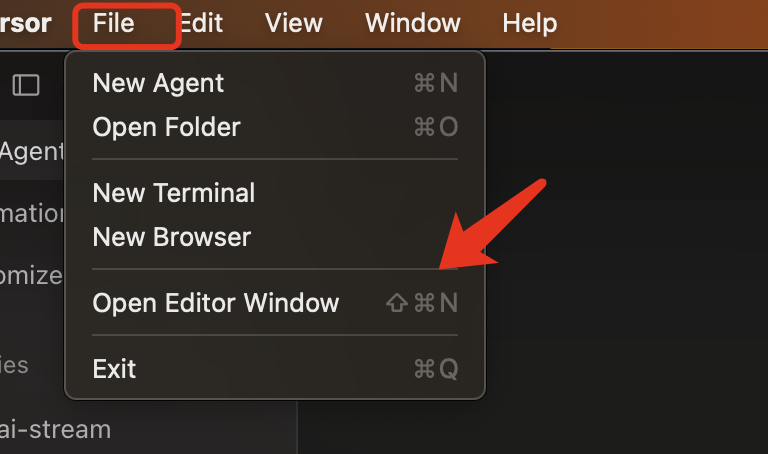
Cursor 3.0 introduces the Agents window — you can’t install or use plugins inside that window. Press Ctrl + Shift + N, or click Editor Window in the top-right, or click File → Open Editor Window to switch back to the classic IDE editor for installing and using the plugin.
 |  |
|---|
4: 🔥 Use the Plugin
‼️ Very important — follow the screenshots. Just two steps and you’re up and running ‼️
Paste the activation code you purchased (starts with
JG)Click the
Activatebutton to retrieve your activated license infoThe first activation will auto-restart.
If you’re already signed into Cursor, you can use it right away!
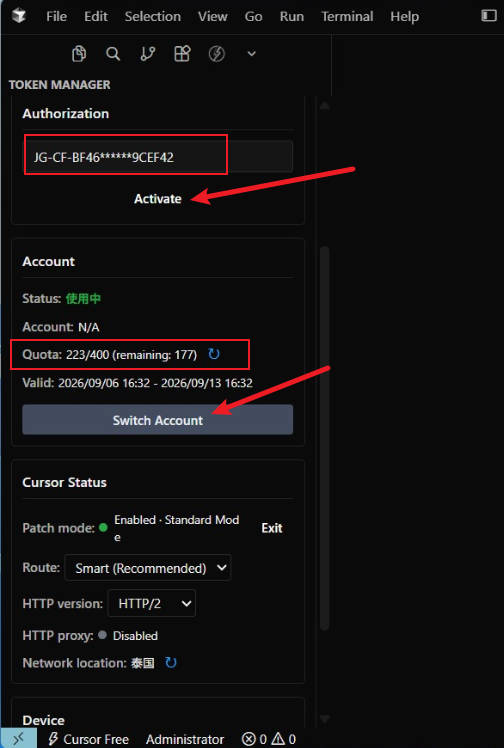
💡 Heads-up: If you had multiple Cursor windows open before activation, activating the plugin in one window won’t sync the result to the others. To apply the license everywhere, restart the remaining windows or restart the Cursor client.
If you haven’t signed into Cursor yet, click One-click Switch Account again to complete the auto-login.
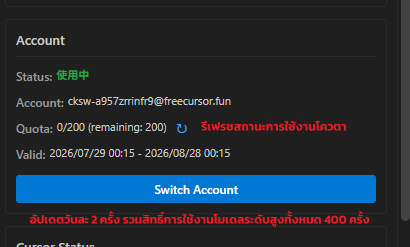
If One-click Switch Account prompts a restart, wait for the restart to finish, then click Switch Account again.
Quota is auto-fetched in real time (it may lag a bit) — or click the refresh button to pull the latest allowance.
Cursor Status — used to verify the plugin’s working mode. You can usually leave the default alone.
Device info — click Unlink to unbind the current device, then bind a different one.
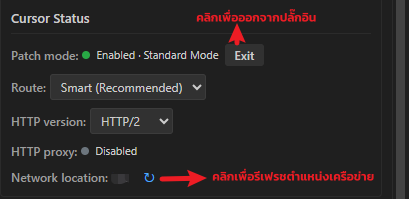
- From plugin version 2.5.3 onward, you can activate keys and switch node modes without opening the plugin panel.
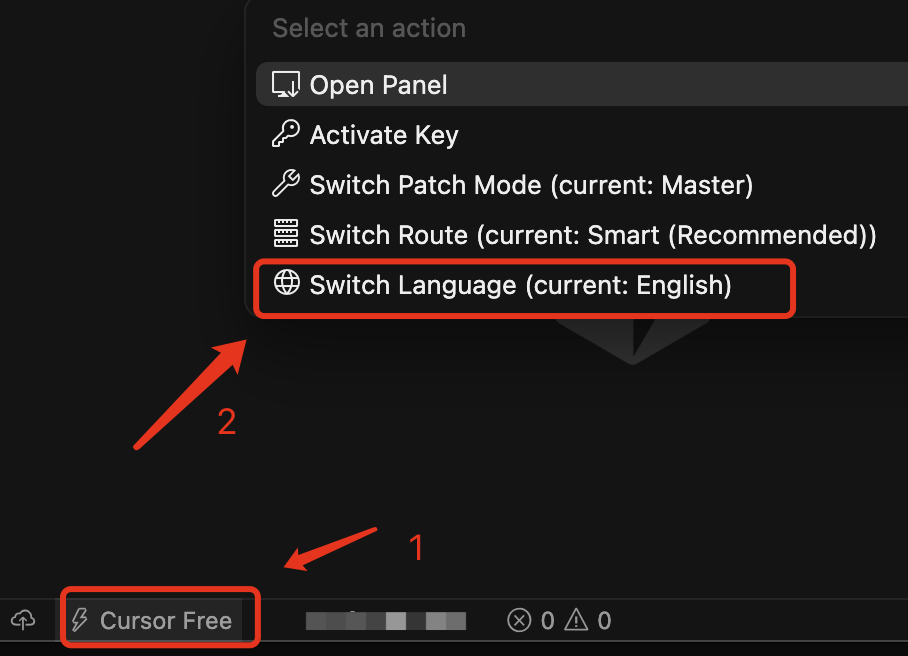
Plugin interface — two languages
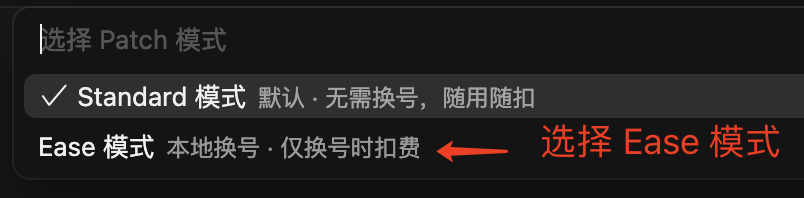
Using Ease mode
Ease mode is the local machine-rotation mode, designed for users with unstable network connections. It works on plugin version 2.7.4 or later. Each rotation consumes 50 independent account credits and won’t deduct anything if you don’t rotate.
 |  | 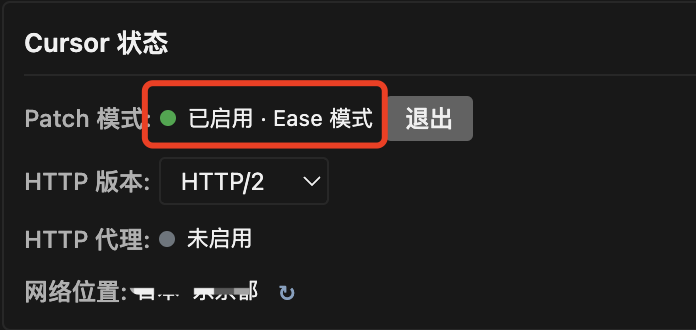 |
|---|
Using Master mode
Master mode is the model’s optimized routing mode, designed for heavy-duty model users. Starting with plugin version 2.7, Master gives you a private, high-stability routing channel with no capability degradation — a great experience, but credits burn faster. We recommend Standard mode for everyday use.
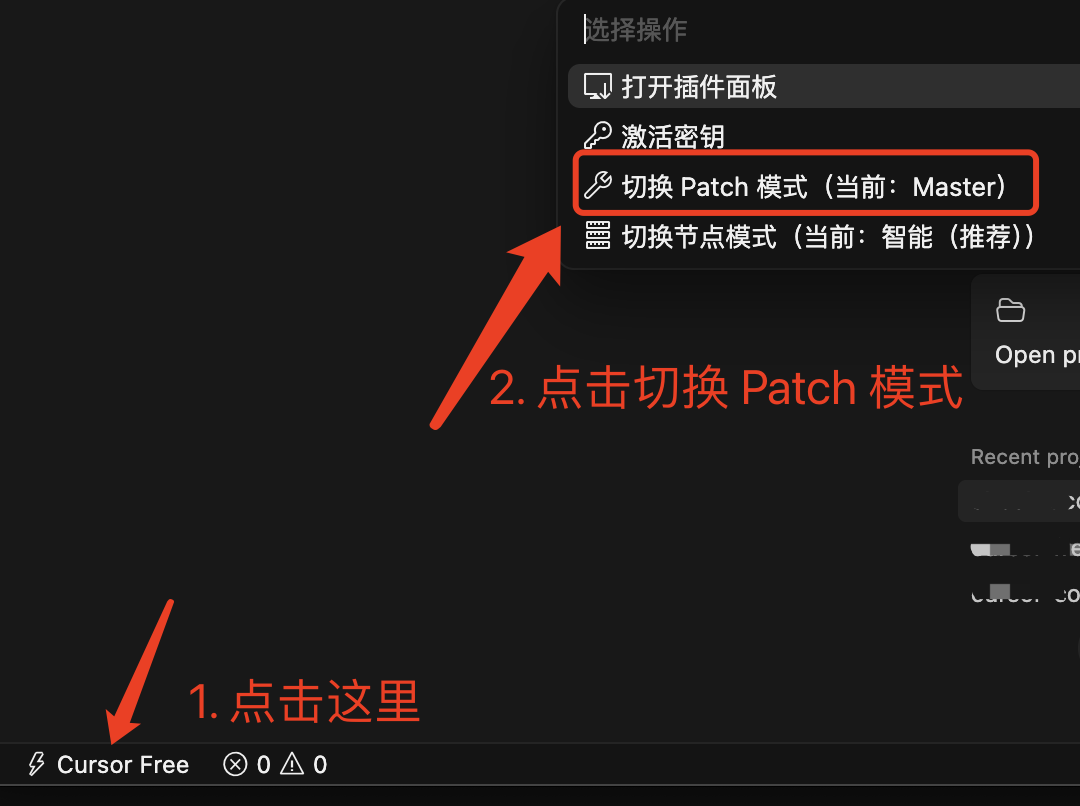 | 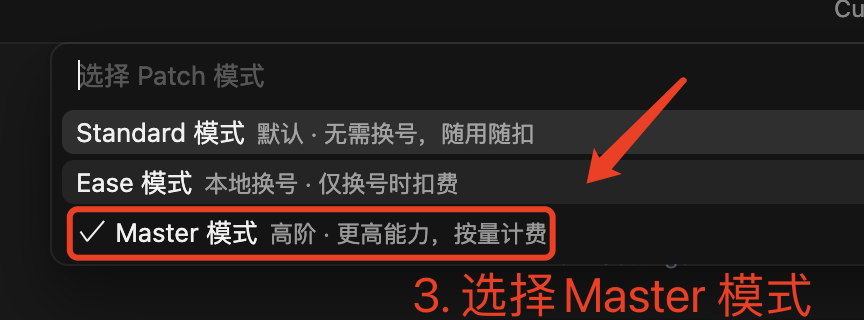 | 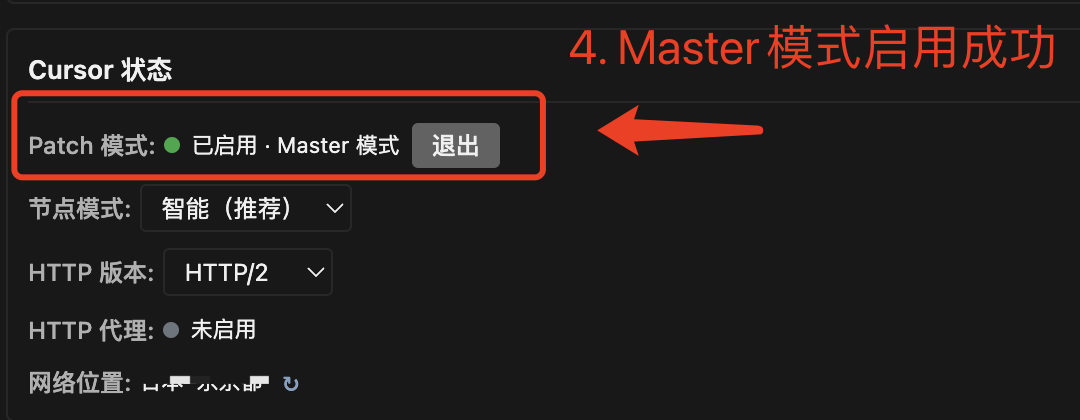 |
|---|
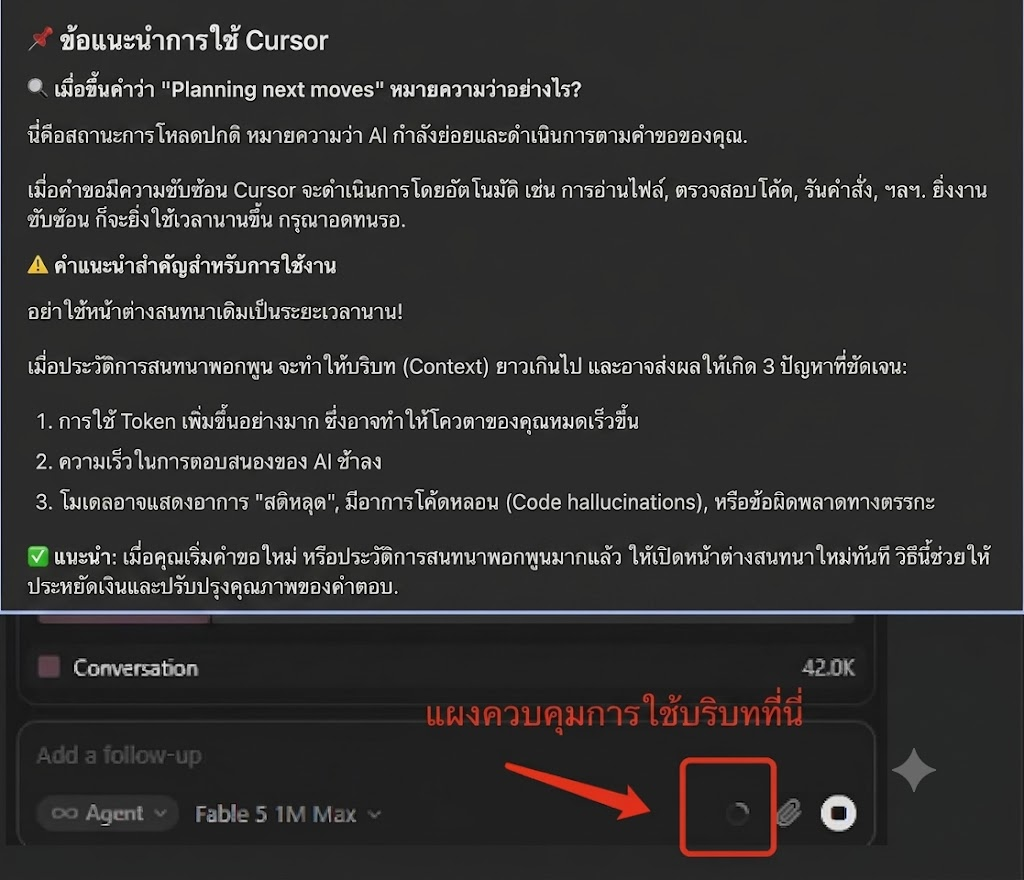
Most large language models have relatively high operating costs. We are committed long-term to refining our pricing so that model services are cost-effective, practical, and accessible to everyone. Choosing the right model for the task, starting a new conversation at the right moment, and controlling the context length all effectively reduce token usage and operating cost.
How to reduce token usage and save costs
Match the model to the task — top-tier models are expensive and consume resources fast. For simple work, prefer Claude 4.6 / 4.7 Medium or GPT 5.4 / 5.5 Medium first. Reaching for the top model on every task isn’t a best practice.
5: Troubleshooting
If the plugin misbehaves, try these three steps in order — they fix 99% of issues.
If you don’t fully understand a fix in this doc, feel free to use another AI tool like Gemini or ChatGPT to walk you through it. Mastering AI tools is already a required skill for working efficiently!
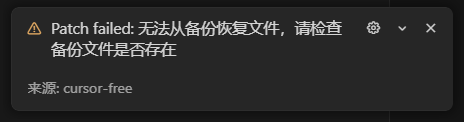
Q: Insufficient permissions — can’t create, edit, or back up files
 |  |  |
|---|
Insufficient permissions — apply the fix below, then quit and relaunch Cursor.
Windows users
Plan 1: Run Cursor as Administrator
Plan 2: Granting file-access permissions to Cursor on Windows{target=“_blank”}
If you still see the “insufficient permissions” error, run the program as Administrator again.
Plan 3: Reinstall Cursor into the default directory C:\Users\Administrator\AppData\Local\Programs.
macOS users
Plan 1:
# chown -R `whoami` to the Cursor app directory on macOS:
sudo chown -R `whoami` /Applications/Cursor.app/Contents/Resources/app
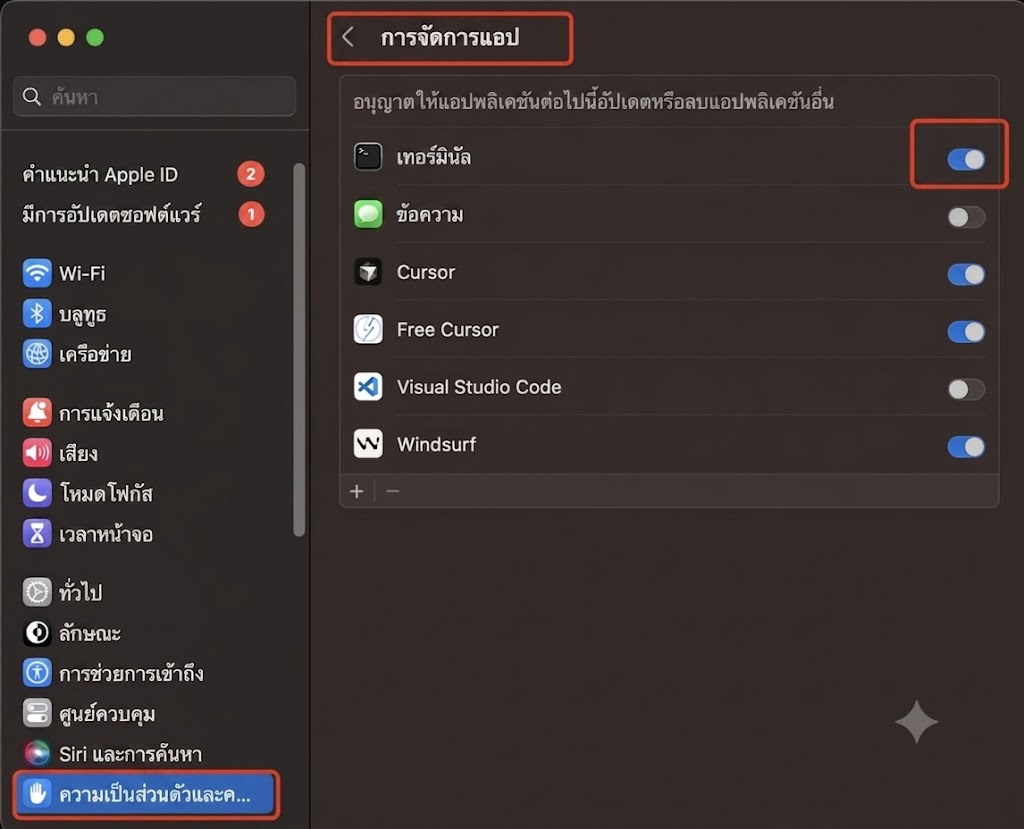
Plan 2: Run sudo /Applications/Cursor.app/Contents/MacOS/Cursor in Terminal to launch Cursor. If permissions are still insufficient, open your Terminal app’s “App Management” settings as shown in the screenshots below.
Linux / Ubuntu users
You must download the .AppImage package.
[📄 Linux / Ubuntu permission troubleshooting guide]
Q: Loading Web… error while rendering the view
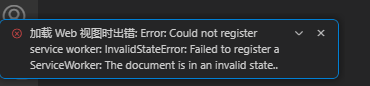
Plan 1: Press Ctrl + Shift + Esc to open Task Manager, kill all Cursor processes, then reopen Cursor.
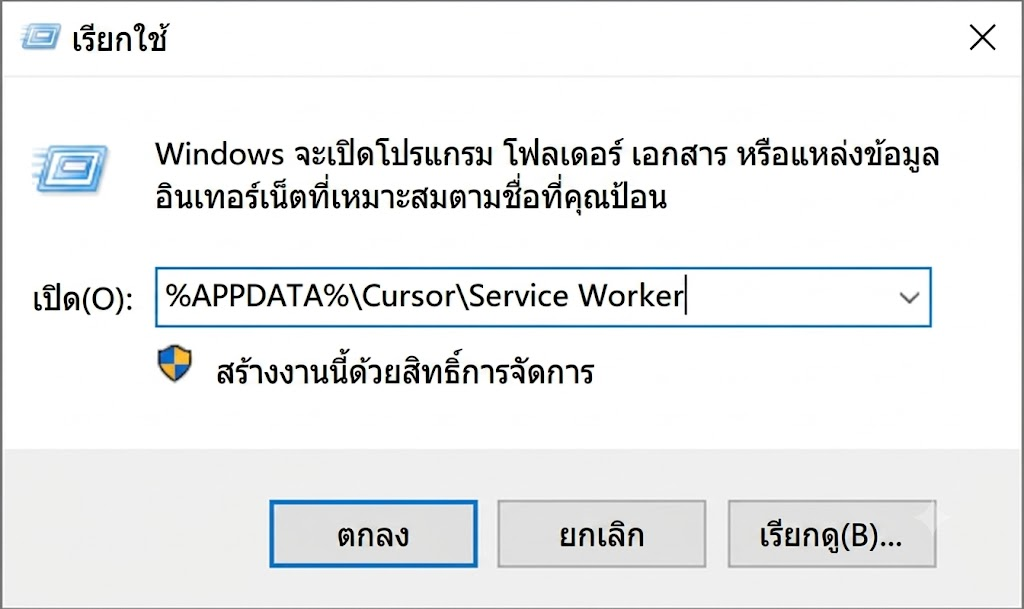
Plan 2: Quit Cursor first, then run %APPDATA%\Cursor\Service Worker in the address bar — it opens the directory. Delete every Service Worker folder, then restart Cursor. Done.
 |  |
|---|
Q: “The intelligent node has been restored stably. It is recommended to switch back to the intelligent (recommended) node.”
When this notice appears, switch the node mode to Enabled · Standard Mode.
The notice will disappear automatically, and we also recommend setting the HTTP version to HTTP/2.
Q: Network issues — Waiting for extension host, Reconnecting, Taking longer than expected, Warming up, The connection stalled, Connection Error, Planning next moves, hangs reading/writing files, hangs running commands, and similar
Bottom line: the product itself isn’t unstable — your network connection is having trouble right now.
Simple suggested fixes
- If you’re using a proxy tool, kill every related process completely.
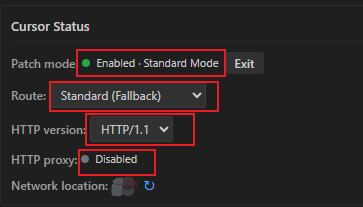
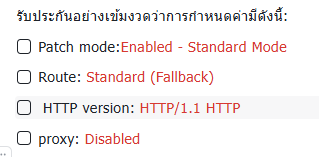
- Route (Smart (Recommended) / Standard (Fallback)) × HTTP version (1.1 / 2) gives 4 combinations — try them one at a time. Most networks accept one of them.
- HTTP/2 routes tend to slow down in the afternoon. If access lags, switch to the HTTP/1.1 route.
- If nothing else works, choose direct local machine-rotation mode.
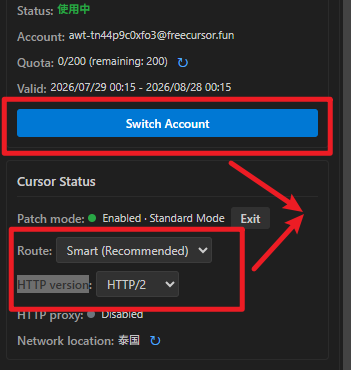
For beginners:
- Plugin must be version 2.6.x or later.
- Follow the screenshots strictly.
 |  |
|---|
If it still doesn’t work, check manually against the screenshots, or send the issue to technical support.
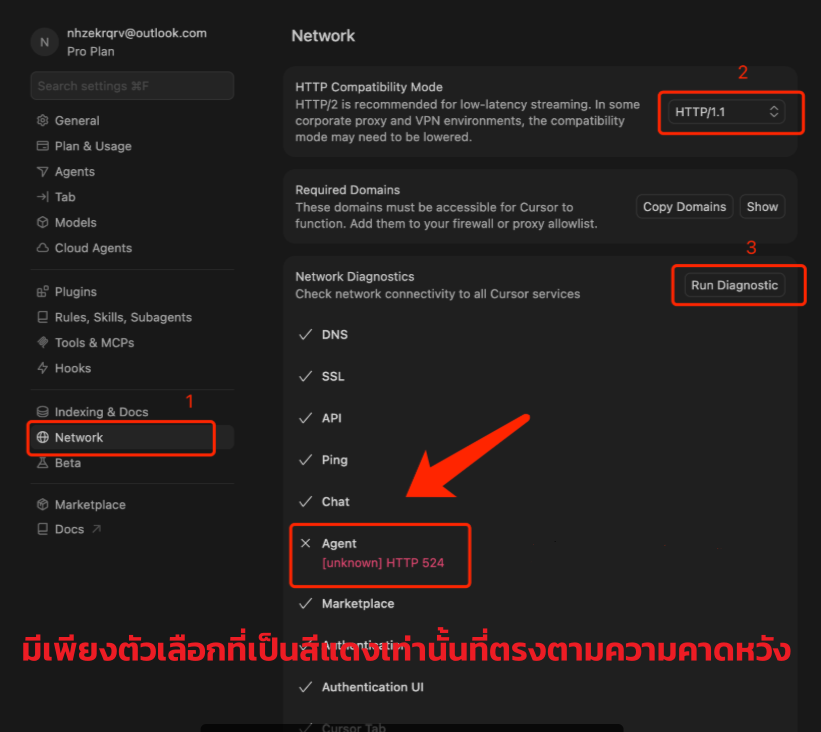
Additional note:
If after the steps above and a normal network check the Reconnecting message still appears, disable the plugin first and run a quick Q&A to confirm whether the plugin itself is the cause.
Tested: turning off Include third-party Plugins, Skills, and other configs returns to normal. If you previously installed Skills in CC (Claude Code), Cursor will auto-import them as imported plugins.
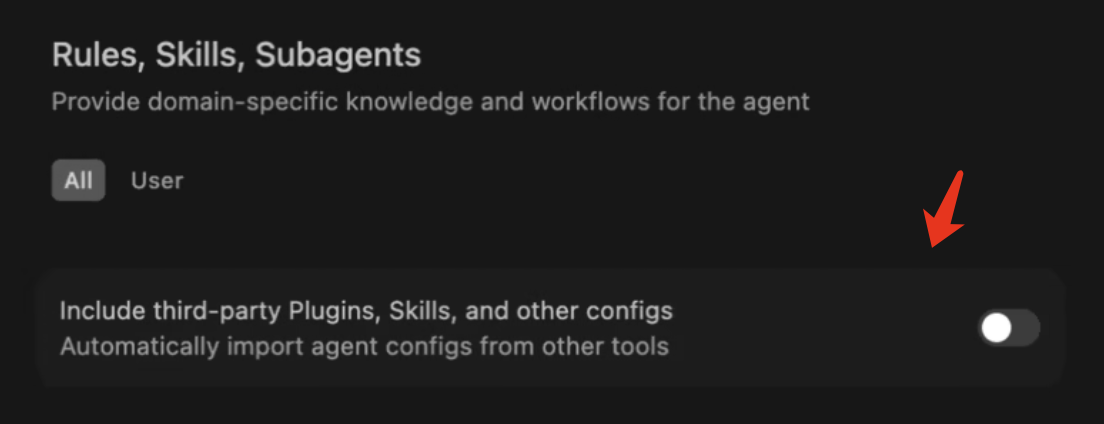
Additional note:
After the steps above and a normal network check, if only some items are slow to write files while everything else works fine, rename that item directly and continue your Q&A.
Q: “An unexpected error occurred on our servers. Please try again, or contact support if the issue persists.”
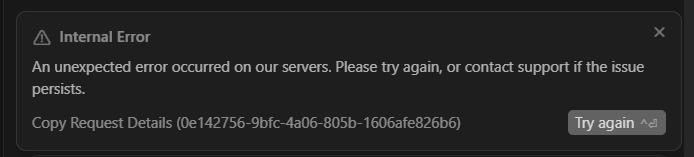
Option 1: This is a known BUG — simply start a new conversation and it resolves.
(Ctrl + N, New Chat or New Agent — that means starting a fresh conversation, not resending the current one.)
If that doesn’t work, click Copy Request and send the payload to technical support.
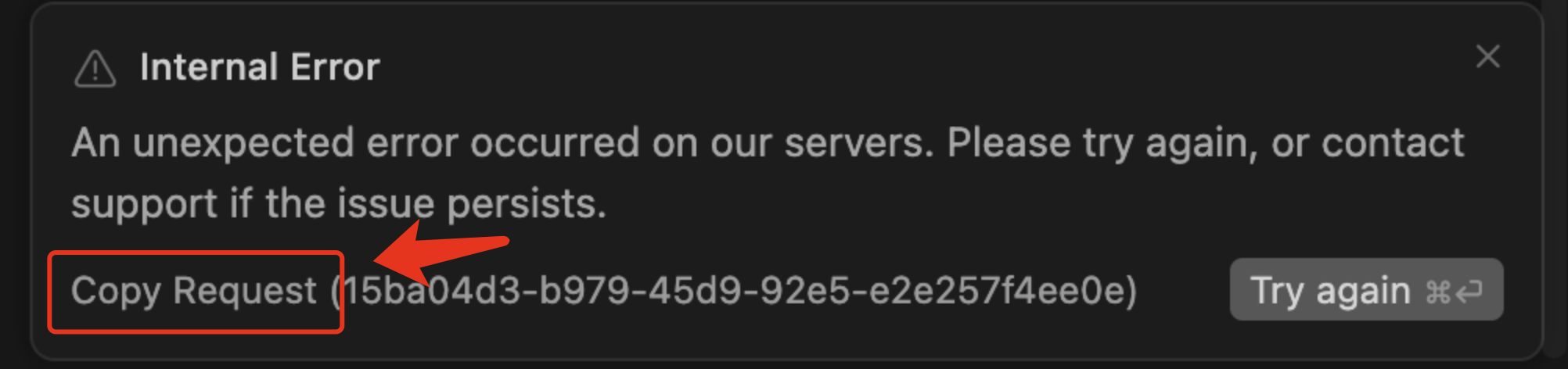
Plan 2: Improving Cursor’s network access{target=“_blank”}
Will my conversation history disappear if I start a new conversation?
The Cursor team also recommends splitting work into pieces and opening new conversations per task — that gives sharper answers and saves compute!
You can also reference past conversations this way: in the input box, type @p and pick Past Chats.

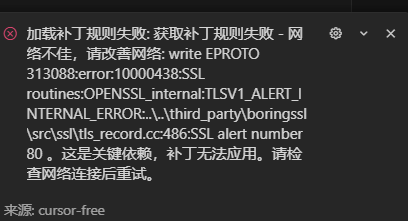
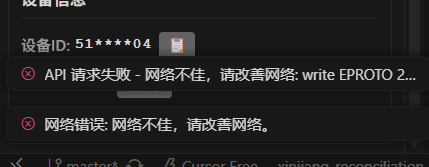
Q: Unstable network, please improve your connection: write EPROTO
 |  |
|---|
Local network issue — try this: phone hotspot, a different ISP, toggling the proxy on/off.
Q: [unauthenticated] error
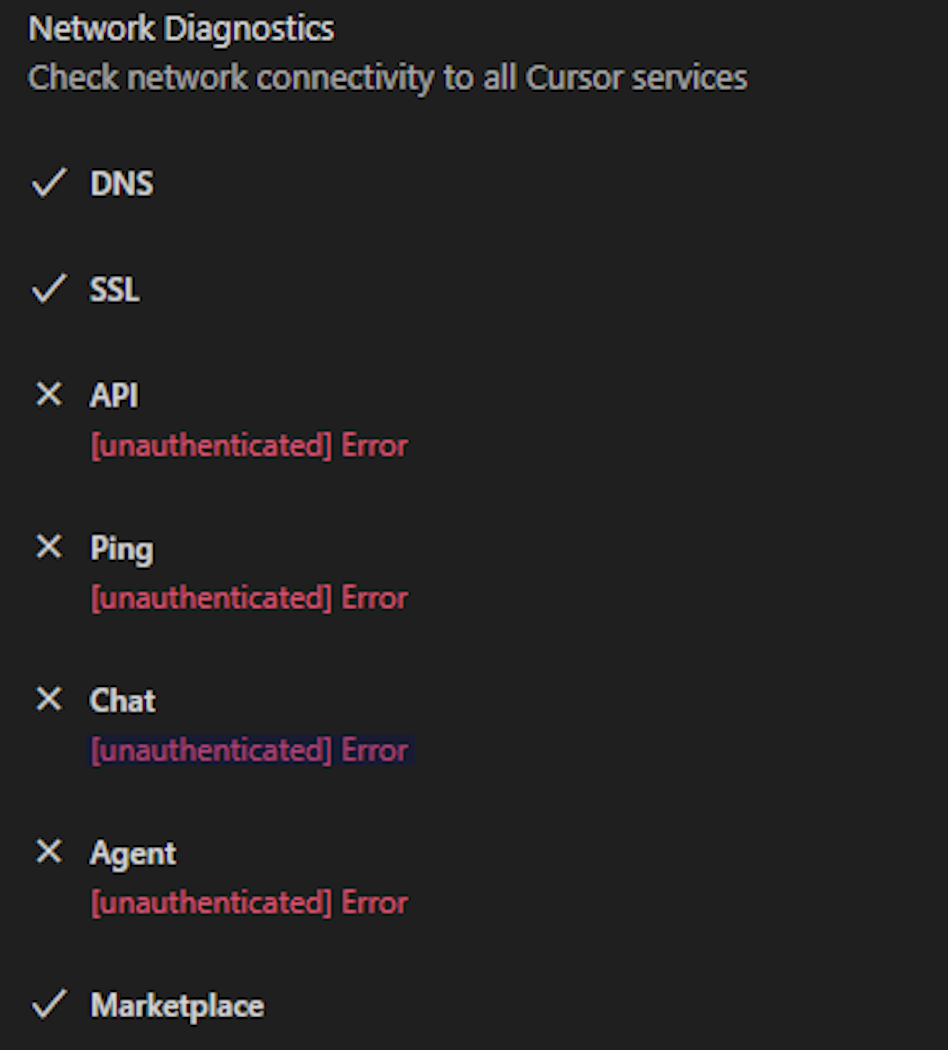
Quit the Cursor process and clear the cache.
Q: Failed to establish a socket connection to proxies: PROXY
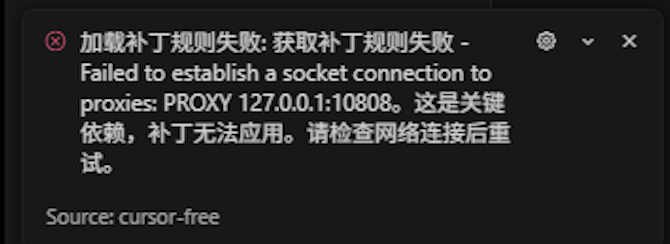
Do not use a proxy.
Q: Append data exceeds maximum size of 52428800 bytes
This error means the request payload exceeded the 50 MB limit. There are three common causes — check them in order:
Skills — If you’ve installed Skills in Cursor’s Settings → Skills, every request attaches a summary of those Skills. Having too many Skills is the most common cause of this error — even sending a short message like “Hi” can trigger it. Try disabling or removing Skills you don’t need. You can still keep using them by invoking with
/skillname, and add the following to each Skill’sSKILL.mdto keep the request size small:disable-model-invocation: trueDisable HTTP/2 — Open Settings (
Ctrl + ,) and search for HTTP/2. If “Disable HTTP/2” is checked, the encoding becomes less efficient and you’ll hit the size limit sooner. Uncheck that option.Large files in the project — If your project has large files (binaries, PDFs, images,
node_modules), they may be pulled into the context. Create a.cursorignorefile at the project root and list the large paths to exclude:node_modules/ *.pdf *.docx images/ dist/ build/
Quick test: open an empty folder and send the message “Hi”. If it works, the problem is inside your project.
Q: Agent Execution Timed Out
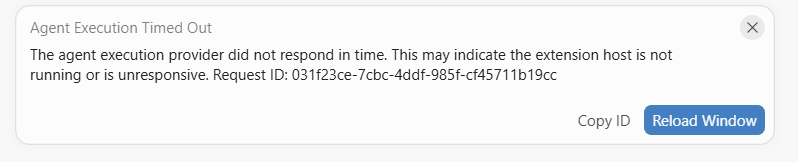
- Restart the Extension Host: press
Cmd + Shift + P, typeDeveloper: Restart Extension Host, and run it. This restarts the Extension Host process without deleting any of your data. - Start a new conversation: if the issue is tied to a specific chat’s state, opening a new Agent window may fix it. Your existing conversations stay saved.
- Check the size of
state.vscdb: this file can grow large enough to make Extension Host unresponsive. Check it at~/Library/Application Support/Cursor/User/globalStorage/state.vscdb. If it’s bigger than 1–2 GB, that’s likely the cause. - Test in an empty folder: run
mkdir ~/test-project && cursor ~/test-projectand try sending a short prompt. If it works there, the issue is most likely the workspace itself, which helps narrow it down.
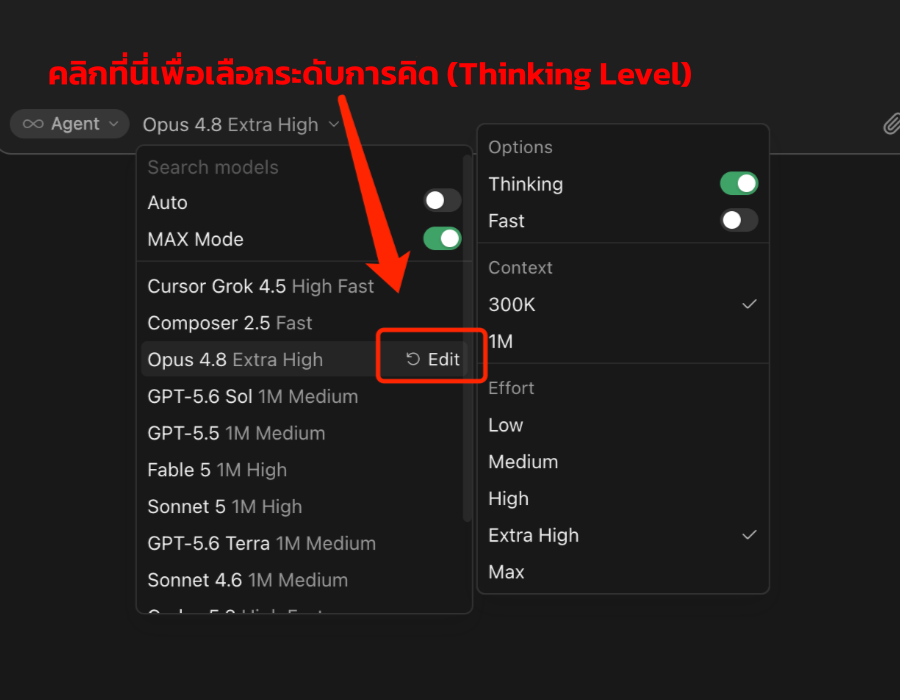
Q: Why don’t the model name suffixes have high or max?
Cursor renames models. Do this: hover the model name, the Edit button appears — click it to pick.
Q: SSH usage
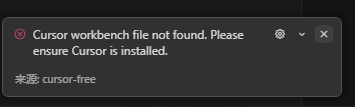
Activate on the local Cursor first, then connect over SSH to use it. Do not activate on the remote machine. The same applies to One-click Switch Account — always do it on the local machine!
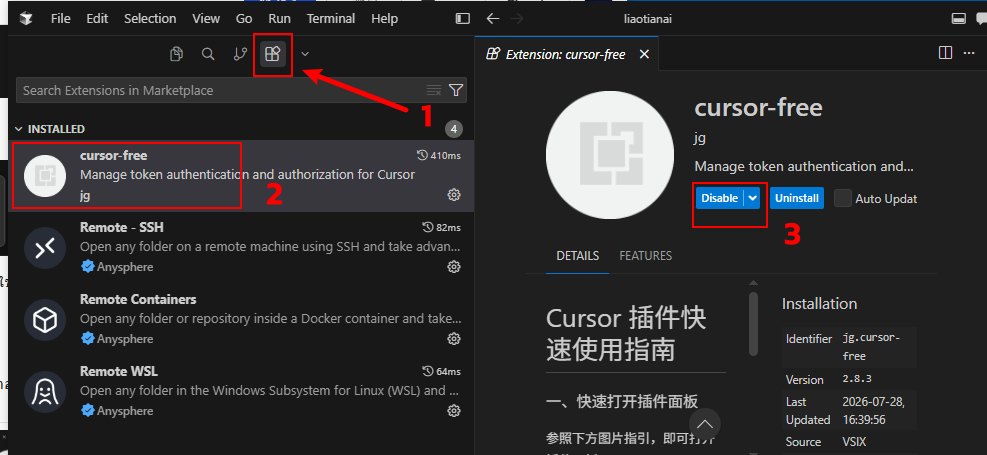
Q: How do I uninstall the plugin?
Find and click the cursor-free plugin to expand its details page, then click Uninstall. Done.
Q: After reinstalling Cursor, I have to sign in before I can use it
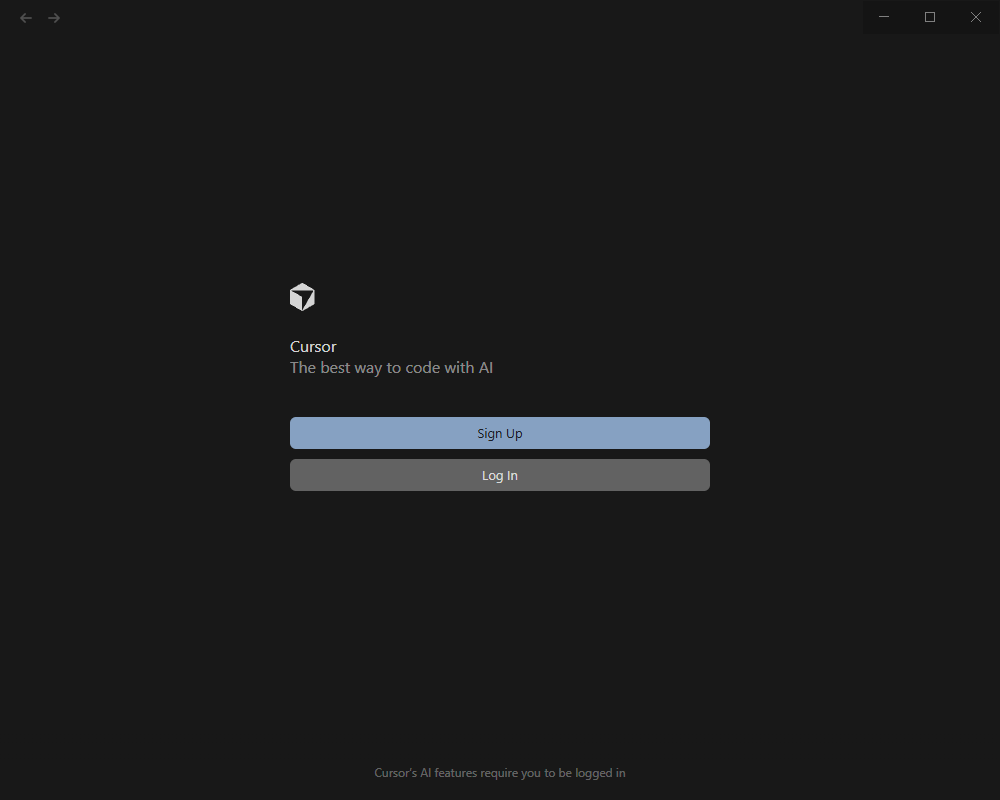
Plan 1: Sign in with any account you like.
Q: How do I uninstall Cursor?
Delete only the program itself (delete the Cursor folder in the install directory). Do not use Geek Uninstaller to wipe the cache — otherwise all of Cursor’s saved history will be gone!
# Windows
cmd /c rd /s /q %APPDATA%\Cursor
# macOS
rm -rf ~/Library/Application\ Support/Cursor
Q: Clear Cursor cache
Quit Cursor first, then run the commands below.
# Windows
cmd /c rd /s /q %APPDATA%\Cursor\User\globalStorage

# macOS
sudo rm -rf ~/Library/Application\ Support/Cursor/User/globalStorage
Q: Failed to disable proxy: update settings failed — Unable to write into user settings
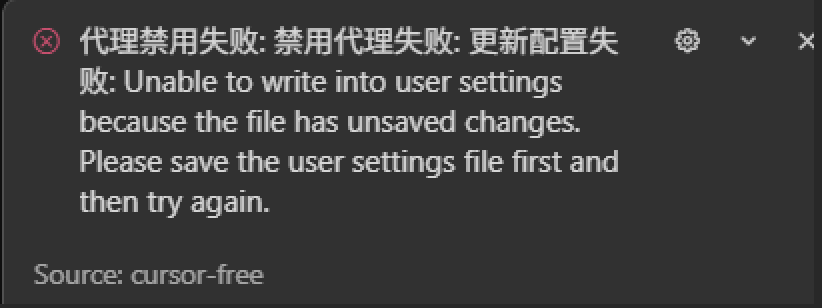
There’s a problem with your User Settings file.
- Windows:
Ctrl + Shift + P/ macOS:Cmd + Shift + Pto open the Command Palette. - Type
Open user settingsand pick the first item as shown — it opens the config file for editing.

- Delete the sections highlighted in red (the parts with errors) or fix them so they’re valid.
Q: File contents show up as gibberish (unreadable text)
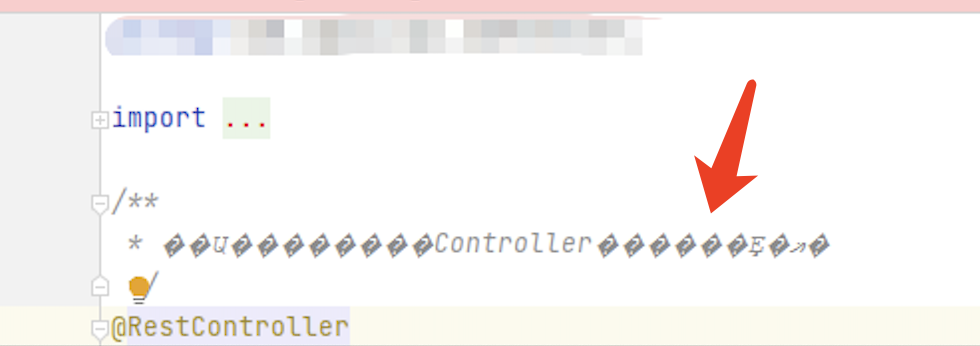
Open Cursor, press Ctrl + Shift + P, type Open User Settings JSON, then press Enter. Add these two lines to the JSON file and save. It takes effect immediately — no restart needed.
{
  "files.encoding": "utf8",
  "files.autoGuessEncoding": false
}- If gibberish text still shows up, here’s another approach:
Some older projects have character-encoding issues that can cause Cursor to display or respond incorrectly. Fix by converting everything to UTF-8 encoding to prevent unreadable text.
This works for projects where English renders fine but Chinese / other text is garbled. If the model’s reply itself becomes entirely gibberish, this fix won’t help — please contact technical support for further help.
Q: Adding Rules
The plugin doesn’t support adding Rules directly from the local side. Go to the .cursor/rules folder at the project’s root directory, create a new *.mdc file, and put your Rule content inside.

Q: CodeExpectedError: This operation was aborted
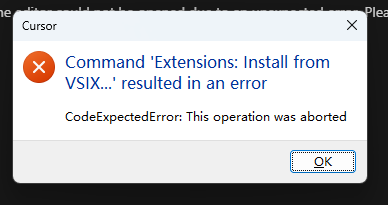
Fix 1: Delete the settings.json file and restart Cursor.
Fix 2: Delete the Cursor cache folder. On Windows, that’s the Cursor folder under C:\Users\<your-username>\AppData.
Q: Command ‘Extensions: Install from VSIX…’ resulted in an error UnsetRemoved: Unable to write file ‘/Users/jackieyi/.cursor/extensions/.obsolete’ (NoPermissions(FileSystemError): Error: EACCES: permission denied, open ‘/Users/jackieyi/.cursor/extensions/.obsolete’
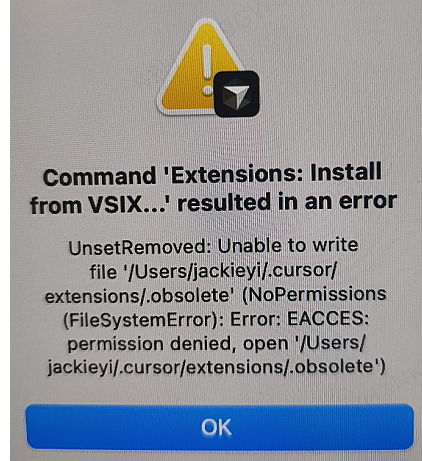
A: Make sure that folder exists and the permission is set correctly.
sudo chown -R guo:staff /Users/guo/.cursor
sudo chmod -R 755 /Users/guo/.cursor
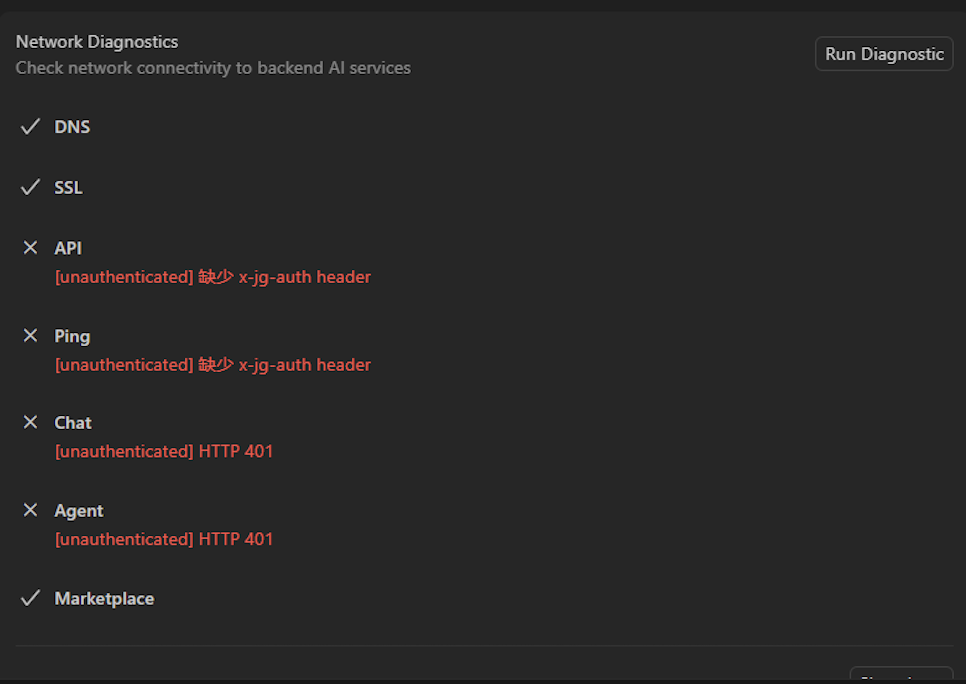
Q: Missing x-jg-auth header
Click Activate again.
 |  |
|---|
Q: “If you are logged in, try logging out and back in.”
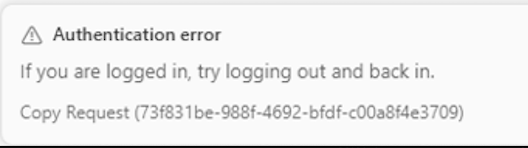
If Cursor 3.9+ shows this notice, fix it by clicking Patch to exit, then Activate again.
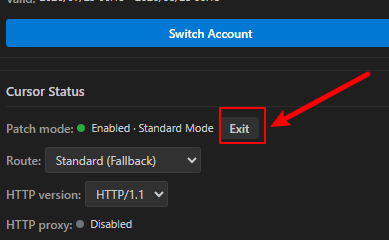
If still not working, try: restart Cursor, or use One-click Switch Account, or reinstall and Activate again, or have the team remote in to check.
Q: Can’t access ‘xx.cursor_free_data’
Some users find that reinstalling the OS fixes it.
# Windows: run cmd as Administrator, then run the command below.
# On success you'll see: "Processed file: C:\Users\<your-username>\.cursor_free_data"
icacls %USERPROFILE%\.cursor_free_data /grant Everyone:F /T /C

# macOS / Linux
sudo chmod 777 ~/.cursor_free_data
Q: Can’t restore from backup, or backup creation failed
 |  |
|---|
See the fix in Insufficient permissions{target=“_blank”}.
Q: Patch failed: Patch failed: Pattern not found in file. Please reinstall Cursor.

A: Uninstall Cursor and reinstall, then Activate again.
Q: Custom patch failed: pattern not found in file. Please reinstall Cursor.
See recommended supported versions{target=“_blank”} and install the recommended version.
Q: User is unauthorized
Fix 1: Sync your machine’s clock to the current time.
Q: Disable Cursor auto-updates
Right after the first activation, the plugin will automatically disable updates for you! The manual steps below are an optional alternative.
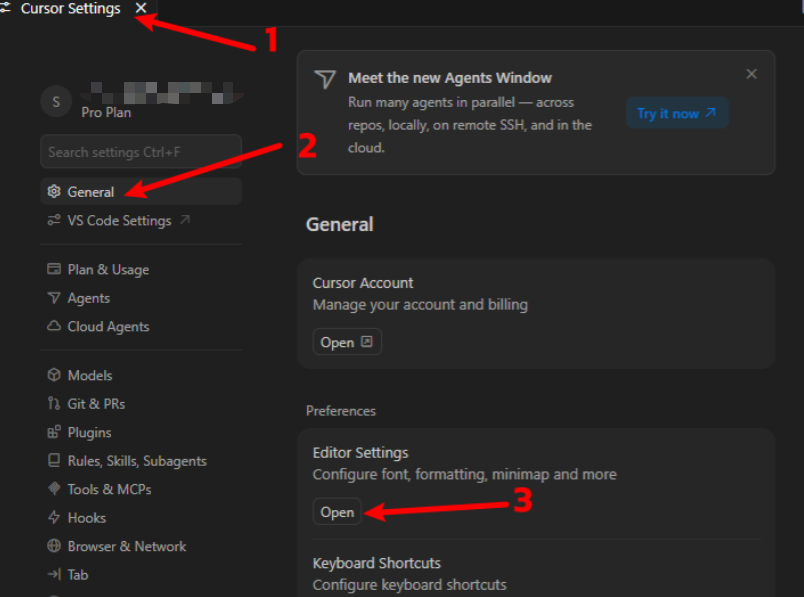 | 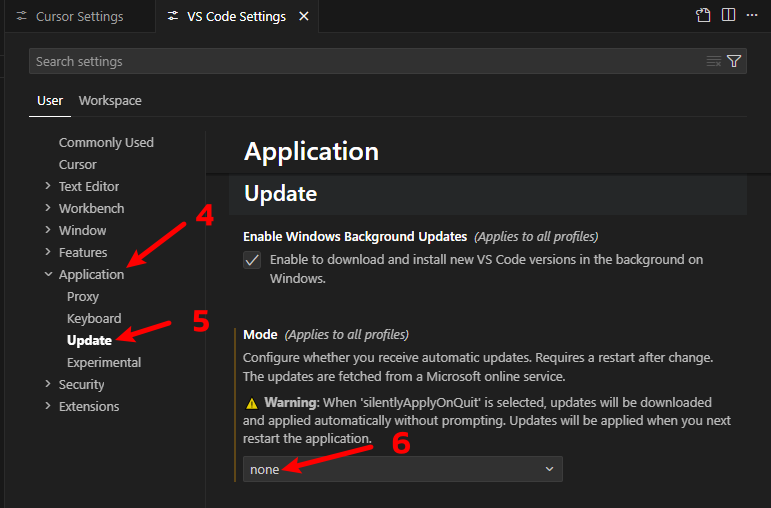 |
|---|
Related Resources
- ngaicode Cursor page — see pricing / order
- ngaicode Home — hub for AI Coding Tools
- ngaicode Claude Code page
- ngaicode Codex page
- WhatsApp Contact us
Ready to get Cursor?
3 simple steps: Pick Cursor Pro → Scan PayPal / USDT → Receive your key instantly
- Order Cursor Pro from ngaicode: ngaicode Cursor page — plans start at $1.50 / 1 month
- Questions / orders: WhatsApp Contact us — real human reply within 5 minutes
- See all 3 AI coding tools: ngaicode Home — Cursor / Codex / Claude Pro