
[Cursor] Granting File-Access Permissions to Cursor on Windows
Step-by-step fix for the "insufficient permissions" error in Cursor on Windows — give the Users group Edit permission on the Cursor install folder.
Granting File-Access Permissions to Cursor on Windows
About the product used in this article
The installation, configuration, and usage steps in this article are based on the [Cursor] product provided by ngaicode.
We offer [Cursor] plans starting from $1.50. After purchasing any plan, you’ll receive a license KEY with a detailed tutorial. If you encounter any issues during installation, setup, or use, our support team is always available to help.
To subscribe to [Cursor], view plans and pricing at the Cursor product page or contact customer support to place an order.
This article focuses on installation and usage instructions. Features and user experience may vary depending on your software version.
Contact us: WhatsApp Contact us — PayPal & USDT TRC20 payments accepted. Replies within 5 minutes during business hours (9:00–24:00 UTC+7).
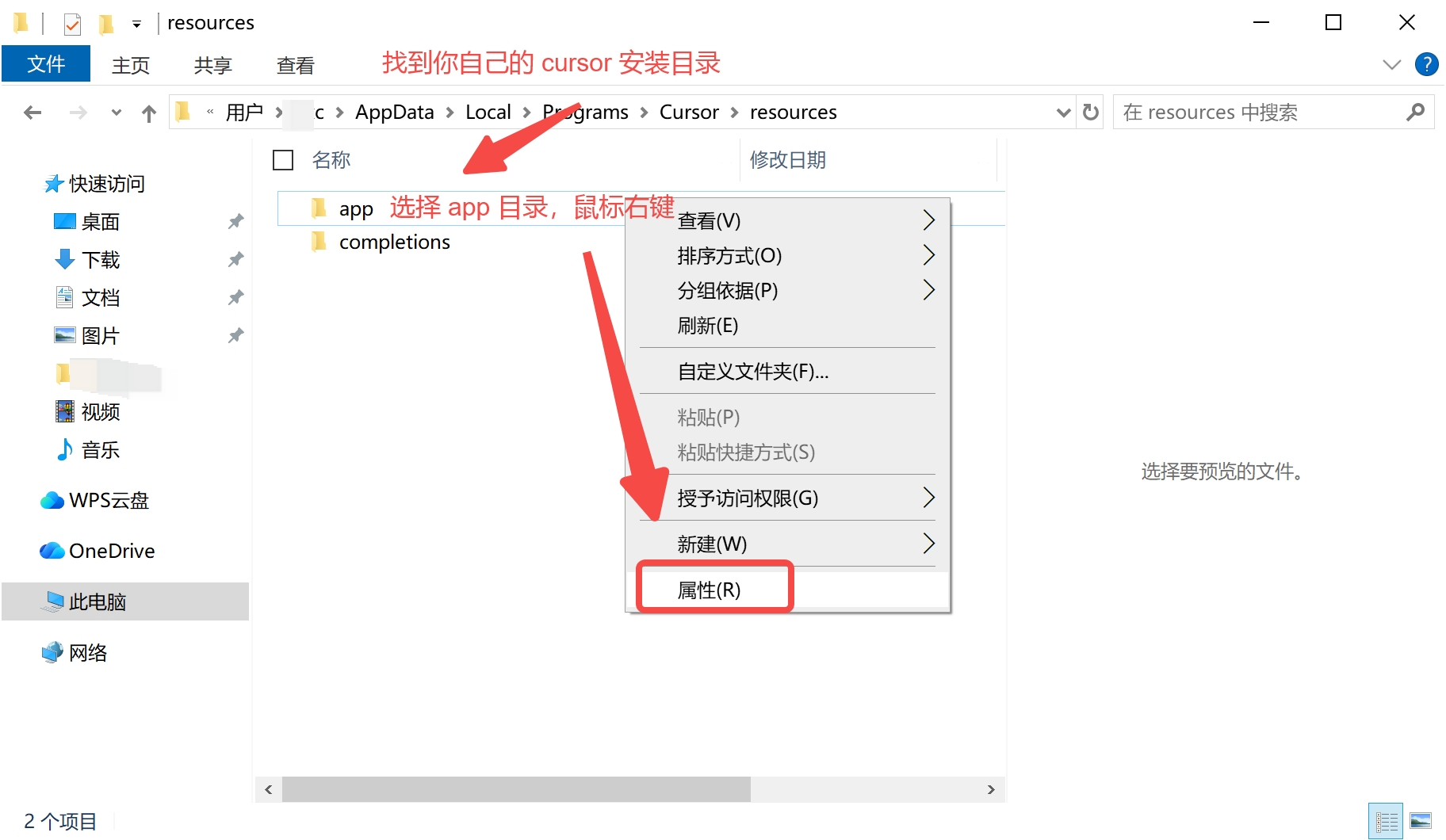
Step 1: Locate Cursor’s installation directory
Find Cursor’s install folder, select the app subfolder, right-click it, and choose Properties.
Step 2: Grant Edit permission to Users
Open the Security tab, give the Users group Edit permission, then click Apply to save.
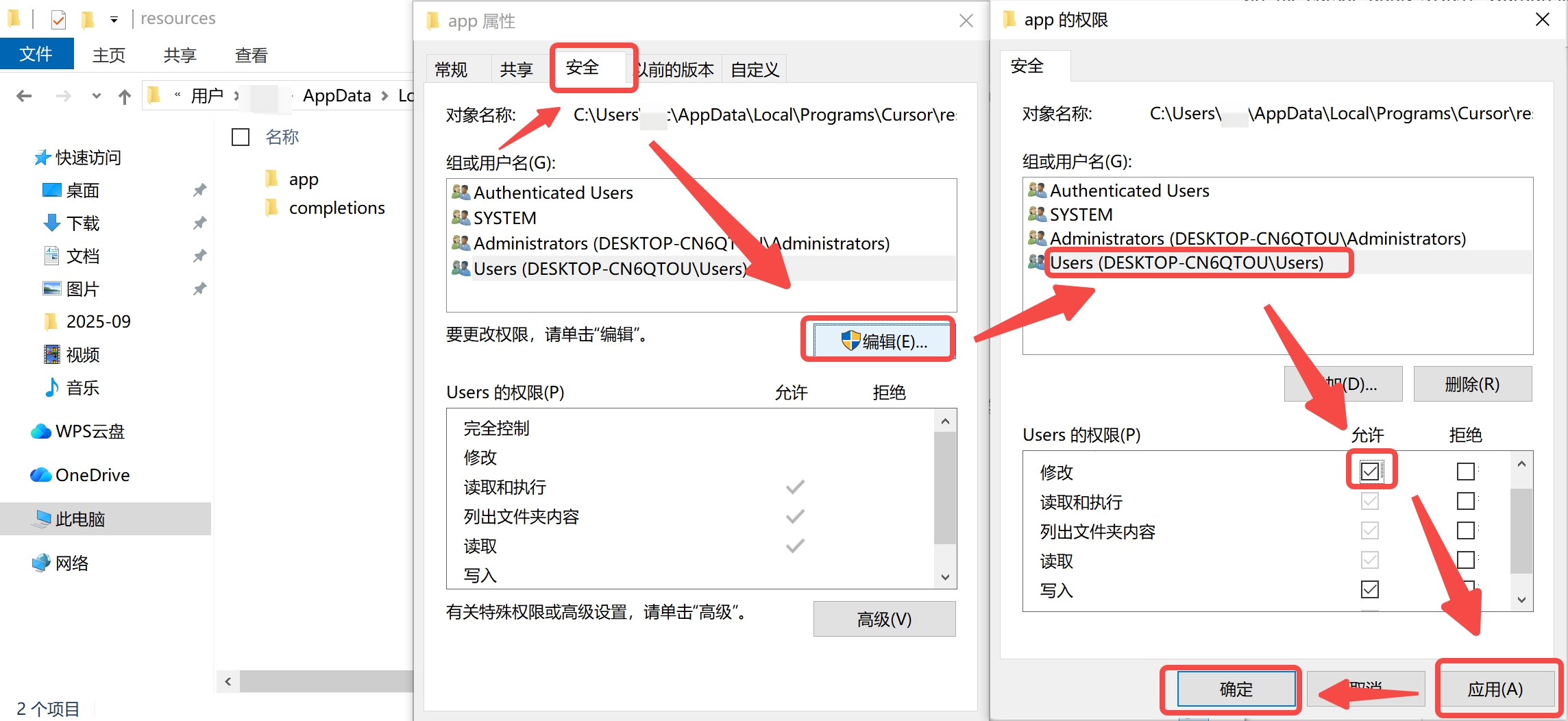
If you don’t see Users in the list, work through the steps below for each entry under “Group or user names”.
Don’t see a Security tab?
No Security tab? Just launch Cursor as Administrator instead.
Run Cursor with Run as administrator and you’re done.